How to make a Faux Leather Spring Coffee Cup Sleeve with a Cricut

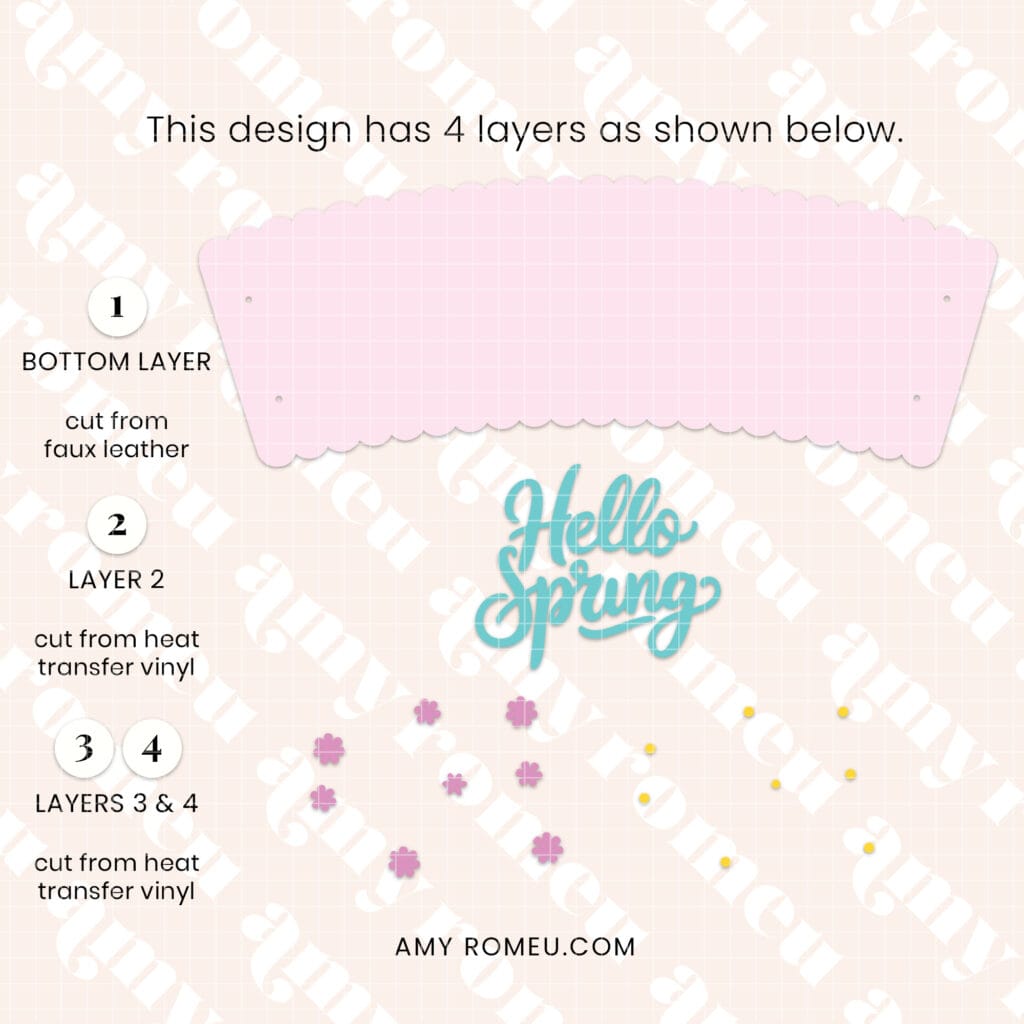
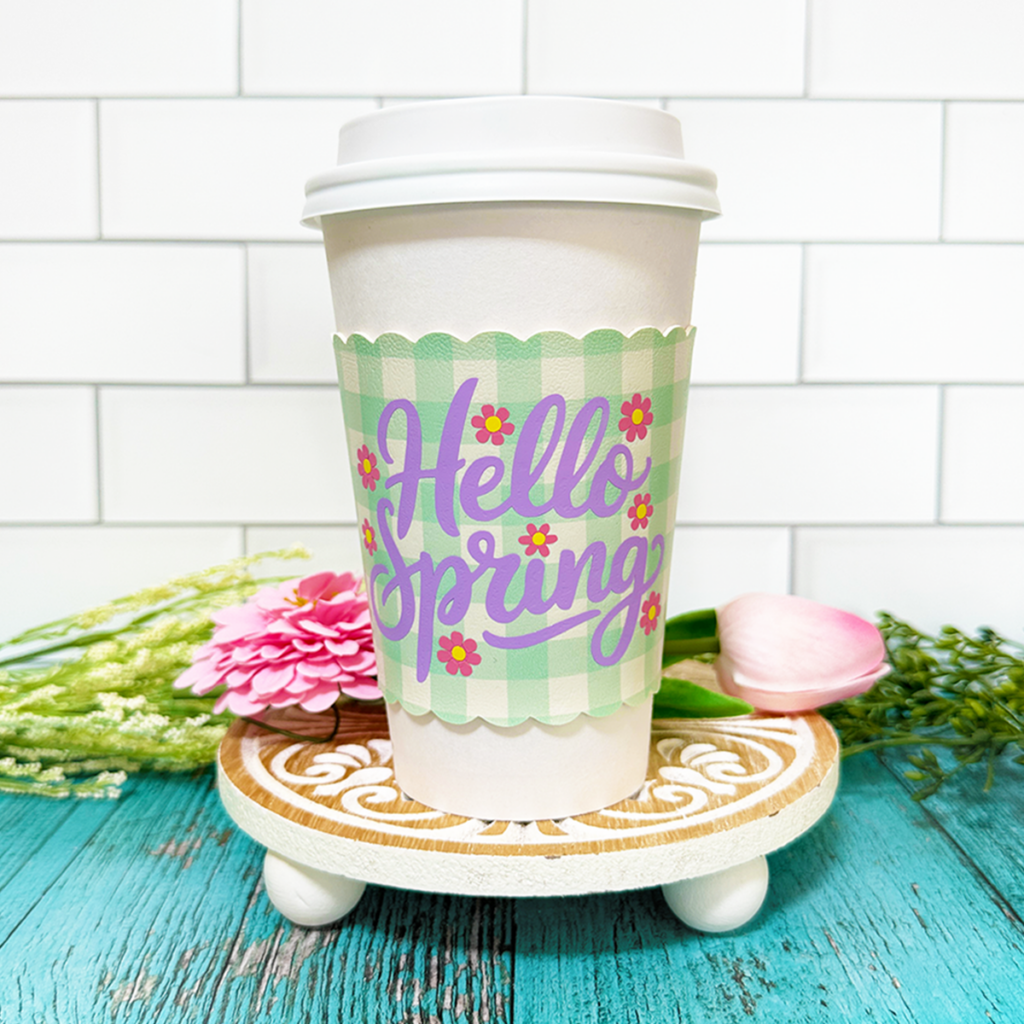
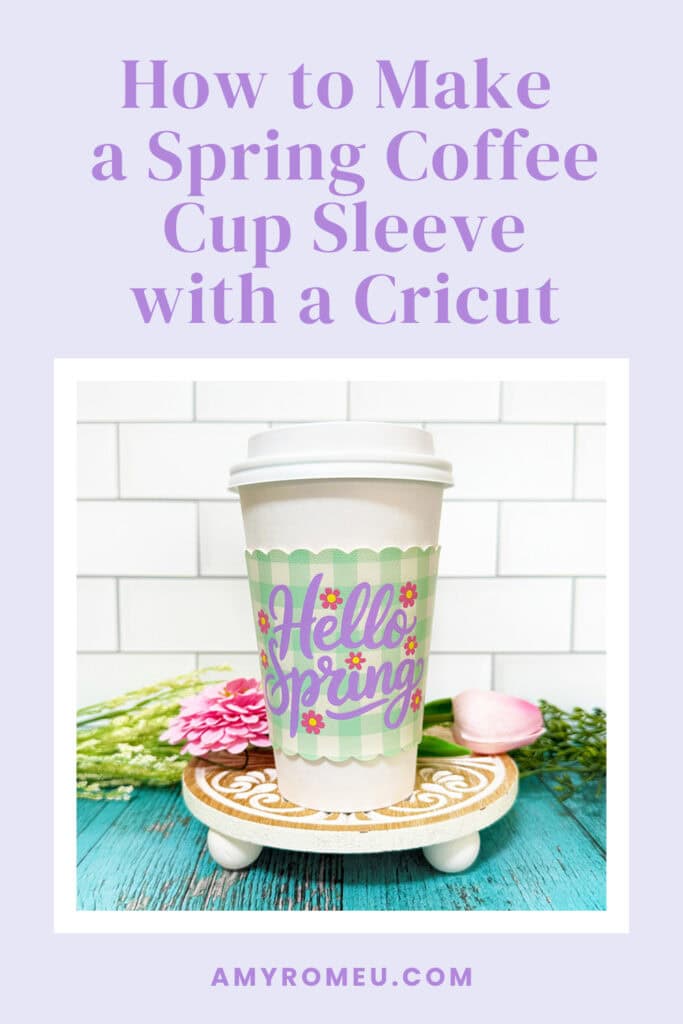
Learn how to make this fun Hello Spring Coffee Cup Sleeve with your Cricut using faux leather and heat transfer vinyl!
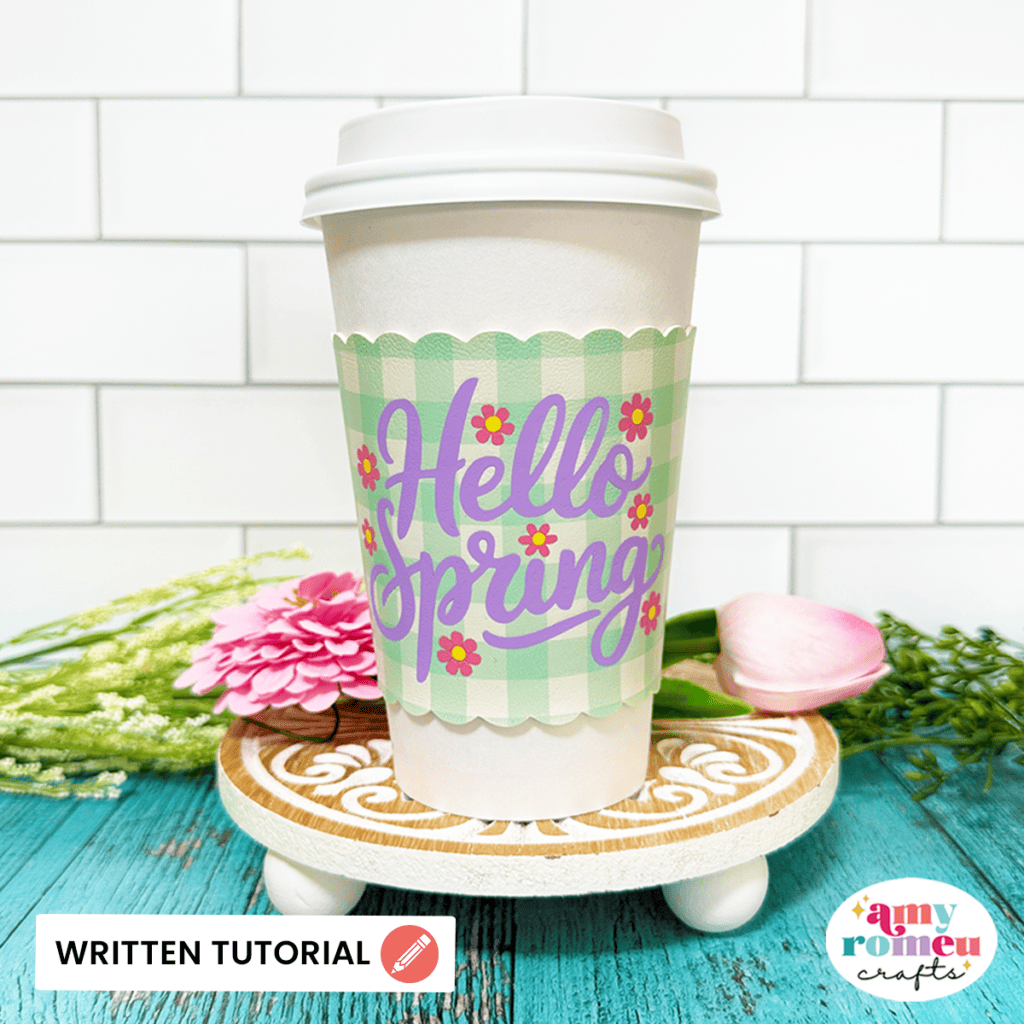
This easy Cricut project has a faux leather layer as the base and then three layers of colorful heat transfer vinyl which create the Hello Spring design. You’ll use fabric glue to assemble the holder and a Kam Snap closure to close it.
This coffee cup sleeve is the perfect spring craft project! The SVG file is available in my shop if you want to make this.
Ready to get started? Let’s dive into the materials and steps!
Step 1: Get the SVG Template
Get the SVG in my Shop
Personal or Small Commercial Use Available
Step 2: Shop the Supplies
This page contains some affiliate links (which means if you make a purchase after clicking a link, I will earn a small commission at no additional cost to you). Read my full disclosure policy here.
Compatible Machines✅: Cricut Maker, Cricut Maker 3, Cricut Maker 4, Cricut Explore Air 2, Cricut Explore 3, Cricut Explore 4, Cricut Joy Xtra, Cricut Joy with the 12 inch mat
Not Compatible Machines❌: none
Blade Used: Standard Fine Point Blade
Cut Setting Used✂️: Faux Leather (Paper Thin) with “More” pressure
- Faux Leather & Heat Transfer Vinyl
- Use any smooth faux leather you’d like. I used this green gingham print faux leather. I ordered a 9×12 sheet with Portrait Orientation and Regular Scaling.
- Use any HTV you’d like. I used Siser Easyweed in Lavender, Lemon Yellow, and Bubblegum Pink.
- Other Project Supplies
- Size 20 Kam Snaps
- Kam Snap Pliers. Comes in the set linked above or sold separately here.
- Other Cricut Supplies
- Blue Painters Tape
- Small Curved Scissors
- Teflon Sheets
- Purple Strong Grip Mat
- Green Standard Grip Mat
- Weeding Tool like a Pin Pen or like the one in the Cricut Basic Tool Set
- Cricut EasyPress Mini
- EasyPress Mat, 8×10 size
🛒 To shop many of these supplies below in my Amazon storefront, click here.
Step 3: Make the Project
Set Up Your Design
- Open a new canvas in Cricut Design Space.
- Upload the Hello Spring Cup Sleeve SVG to Cricut Design Space.
Prepare to Cut
- Click Make It.
- Mirror your mats, since you’ll be cutting the faux leather and heat transfer vinyl face down.
- Choose the Faux Leather (Paper Thin) material setting with More pressure for the faux leather mat.
- Choose the manufacturer’s recommended cut setting for the type and brand of heat transfer vinyl you are using. I use the Iron-On setting with Default pressure when cutting Siser Easyweed.
- Trim a piece of faux leather to a size just larger than the size shown in the mat preview screen.
Cut the Faux Leather
- Place the faux leather pretty side down on a Strong Grip (purple) mat.
- Secure all edges with blue painter’s tape.
- Load the mat into your Cricut.
- Press the C button to begin cutting.
- When the cut is complete, without unloading the mat, use a sharp tool to gently lift the edge and check the cut.
- Repeat the cut if necessary by pressing the cut button again.
- Once the cut is complete, unload the mat and remove the shape. Poke through the holes with a sharp weeding tool.
Cut the Heat Transfer Vinyl
- Cut the Hello Spring design layers from heat transfer vinyl.
- Weed away the excess HTV.
Press the HTV onto the Cup Sleeve
- Press the heat transfer vinyl layers onto the cup sleeve one at at time with an EasyPress Mini on Low or an EasyPress set to 265°F.
- Refer to the Layering Guide below to see which layers to cut in which order.
- Cover the HTV and faux leather before applying heat with a Teflon sheet, butcher paper, or parchment paper.
- Press for 5-7 seconds all over. Carefully try to peel the HTV layer. If it doesn’t come up easily, cover and press again.
- Repeat pressing with the other layers. If necessary, let the HTV layer cool for about 60 seconds before trying to peel. This is often helpful with detailed HTV layers.
- Place the warm faux leather shape under your heat pressing pad for a minute or two so it cools flat.
Apply the Kam Snaps
- Gather your Size 20 Kam Snaps and Kam Snap pliers. See the Installation Graphic in your download folders to see which four snap pieces you need to create one snap.
- Holding the cup sleeve pretty side up, place a Size 20 snap cap through the top of one side hole so the post goes down to the backside.
- Hold the Kam Snap so it doesn’t fall out of the hole and flip the flap over. Place a stud on the post.
- Squeeze the cap and the stud tight to close using the Kam Snap pliers.
- Repeat with the second hole on the same side.
- Then on the other end of the cup sleeve, apply to the underside of the faux leather, and a socket on the pretty side.
- Squeeze shut with Kam Snap Pliers. Repeat for the second hole on this side.
- Snap both snaps closed to create the finished cup sleeve.
📺You can watch a video tutorial that shows how to apply the Kam Snaps in a similar project here.
Your Spring Coffee Cup Sleeve is complete! Enjoy this beautiful Spring accessory you made with your Cricut!
Answers to your questions about making a Faux Leather Spring Coffee Cup Sleeve with a Cricut
Q: Which Cricut machines will cut faux leather?
A: You can cut faux leather with any of the current Cricut machines because they all cut faux leather with the standard fine point blade included with each machine. For this project you can use the Cricut Maker, Cricut Maker 3, Cricut Maker 4, Cricut Explore 5, Cricut Explore 4, Cricut Explore 3, Cricut Explore Air 2, the Cricut Joy Xtra or the Cricut Joy. (This pattern can be cut on the Cricut Joy with the 12 inch long mat.)
Q: What do I need to press heat transfer vinyl onto faux leather?
A: To press heat transfer vinyl onto faux leather you’ll need a traditional heat press, Cricut EasyPress, or Cricut EasyPress Mini. I used a Cricut EasyPress Mini for this project because it’s great with pressing small projects like earrings, keychains, and accessories. I set the EasyPress Mini to the Low setting and covered the HTV on the faux leather with a Teflon sheet before pressing for about 10 seconds. For a larger EasyPress I set it to 265 degrees F.
Q: How do I get the SVG template for this project?
A: Get the SVG file from my SVG Shop here.
Get the SVG in my Shop
Personal or Small Commercial Use Available
More Spring projects you’ll love
Also available in my SVG Shop
Share Your Work & Ask Questions
I would love to see what you have created! Please join my free faux leather crafting making Facebook group and share your creations with me and all of my crafting friends!
Until next time… and happy creating!

Pin this project to your favorite Pinterest board!
Want instant access to my Free Resource Library full of SVG files?
Just Enter your name and email Below!
By signing up, you’ll get instant access to my FREE SVG Library with hundreds of crafting SVG templates! You’ll also get my weekly newsletter full of crafting ideas, tutorials, and inspiration! Unsubscribe anytime.